Introduction
If you’ve been using Claude Code for more than a few hours, you’ve probably noticed the permission prompts. Every shell command it wants to run — npm install, kubectl apply, a test runner — stops and asks you to approve it. That’s fine for a first session. It quickly becomes friction at scale.
Claude Code’s sandbox solves this by letting you define security boundaries once, upfront, so commands inside those boundaries run automatically — without sacrificing control. It’s not just a developer productivity feature. For enterprise teams, it’s the foundation of how you run an AI coding agent safely on corporate infrastructure.
This guide covers how sandboxing works under the hood, how to configure it for a corporate environment (including Zscaler, Intune/Jamf, and AWS Bedrock), and answers the questions most teams hit when rolling this out: Does it run on local devices or centrally? Can developers override managed settings? What happens when Windows users need sandbox too?
Why Sandboxing Exists
The alternative to sandboxing is per-command approval. This creates three real problems at scale:
- Approval fatigue — when every shell command needs a click, developers stop reading what they’re approving
- Broken flow — constant interruptions make autonomous, long-running tasks impractical
- Limited autonomy — Claude Code can’t work effectively if it has to pause every few seconds
Rather than asking “can I run this?” for every command, sandboxing asks you one upfront question: “what are the boundaries?” Commands that stay inside those boundaries run automatically. Anything that tries to reach outside — a write to a restricted directory, a network call to an unapproved domain — is blocked immediately at the OS level.
Tip
Effective sandboxing requires both filesystem and network isolation. Without network isolation, a compromised agent could exfiltrate your SSH keys. Without filesystem isolation, it could backdoor shell config files to gain network access. Both layers must be active.
How Claude Code Sandboxing Works
The sandbox applies only to Bash commands and their child processes. Claude’s built-in Read/Edit/Write file tools and Web/MCP tools use the separate permissions system — not the sandbox. Here’s how it all connects:
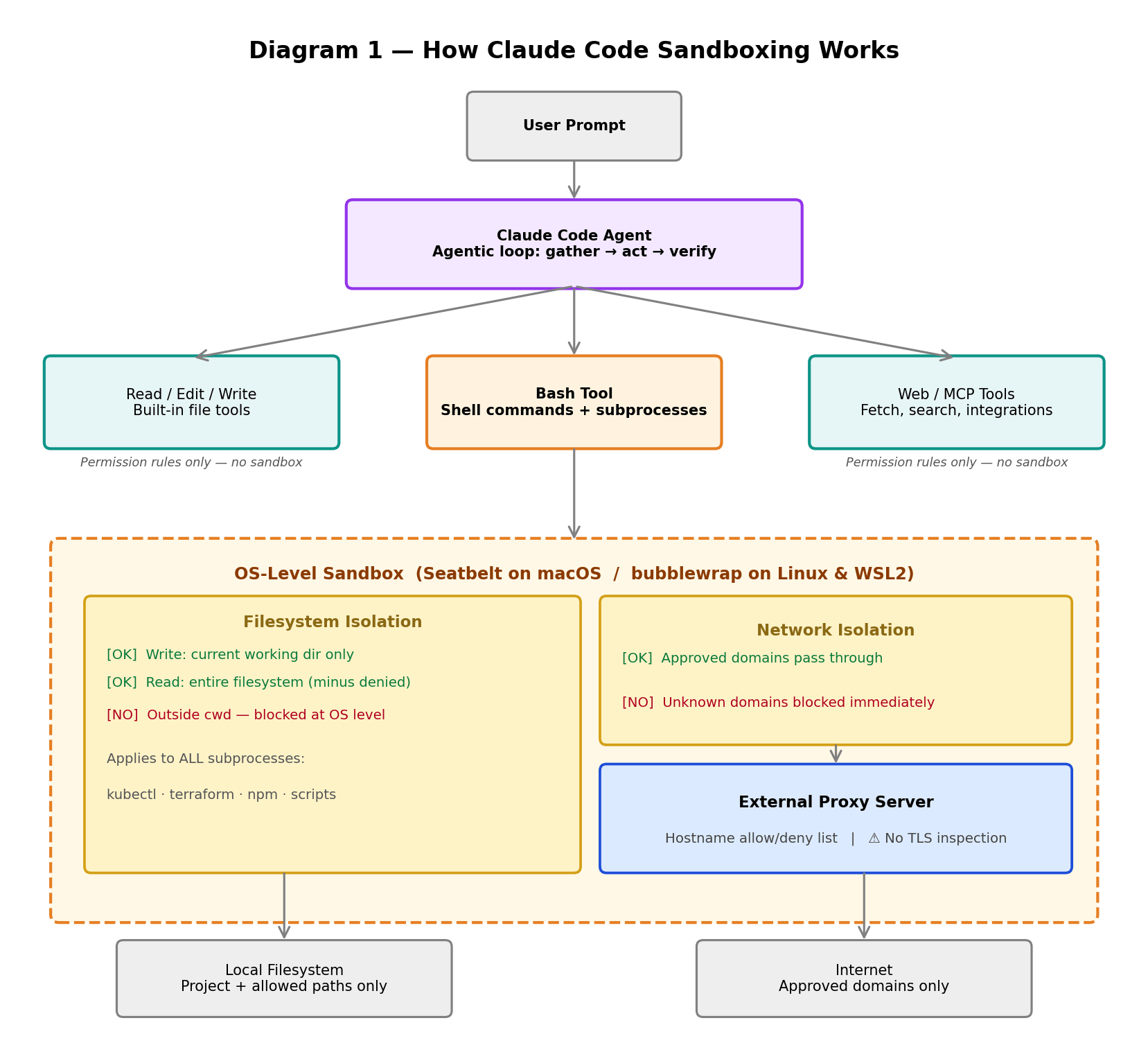 Diagram 1 — How Claude Code Sandboxing Works: user prompt flows into the Claude Code agent, which dispatches to the Bash tool (sandboxed at OS level) or built-in file/web tools (permission rules only).
Filesystem Isolation
By default, the sandboxed Bash tool restricts write access to the current working directory and its subdirectories only. Read access covers the entire filesystem, except any paths you explicitly deny.
| Access Type | Default Behaviour |
|---|---|
| Write | Current working directory and subdirectories only |
| Read | Entire filesystem, except explicitly denied paths |
| Outside working dir | Blocked at OS level — not just application layer |
Crucially, this applies to all subprocess commands the Bash tool spawns — kubectl, terraform, npm, custom scripts — not just Claude’s own tooling.
Network Isolation
All outbound network traffic from sandboxed commands routes through an external proxy server that runs outside the sandbox boundary itself. The proxy enforces your domain allowlist — only approved hostnames can be reached. New domains either trigger a prompt or get auto-blocked, depending on your configuration.
Important limitation: The built-in proxy makes decisions based on hostname only and does not perform TLS inspection. This means domain fronting attacks are theoretically possible. If your threat model requires deeper inspection, you’ll need a custom TLS-inspecting proxy — or Zscaler (covered below).
Platform Support — Including Windows
The sandbox uses OS-level security primitives, so support depends on your platform:
| Platform | Sandbox Support | Technology | Setup Required |
|---|---|---|---|
| macOS | ✅ Full | Seatbelt (built-in) | None — works out of the box |
| Linux | ✅ Full | bubblewrap | sudo apt-get install bubblewrap socat |
| WSL2 | ✅ Full | bubblewrap (same as Linux) | sudo apt-get install bubblewrap socat |
| WSL1 | ❌ Not supported | — | Lacks required Linux kernel namespace primitives |
| Native Windows | ⏳ Planned | — | Not yet available |
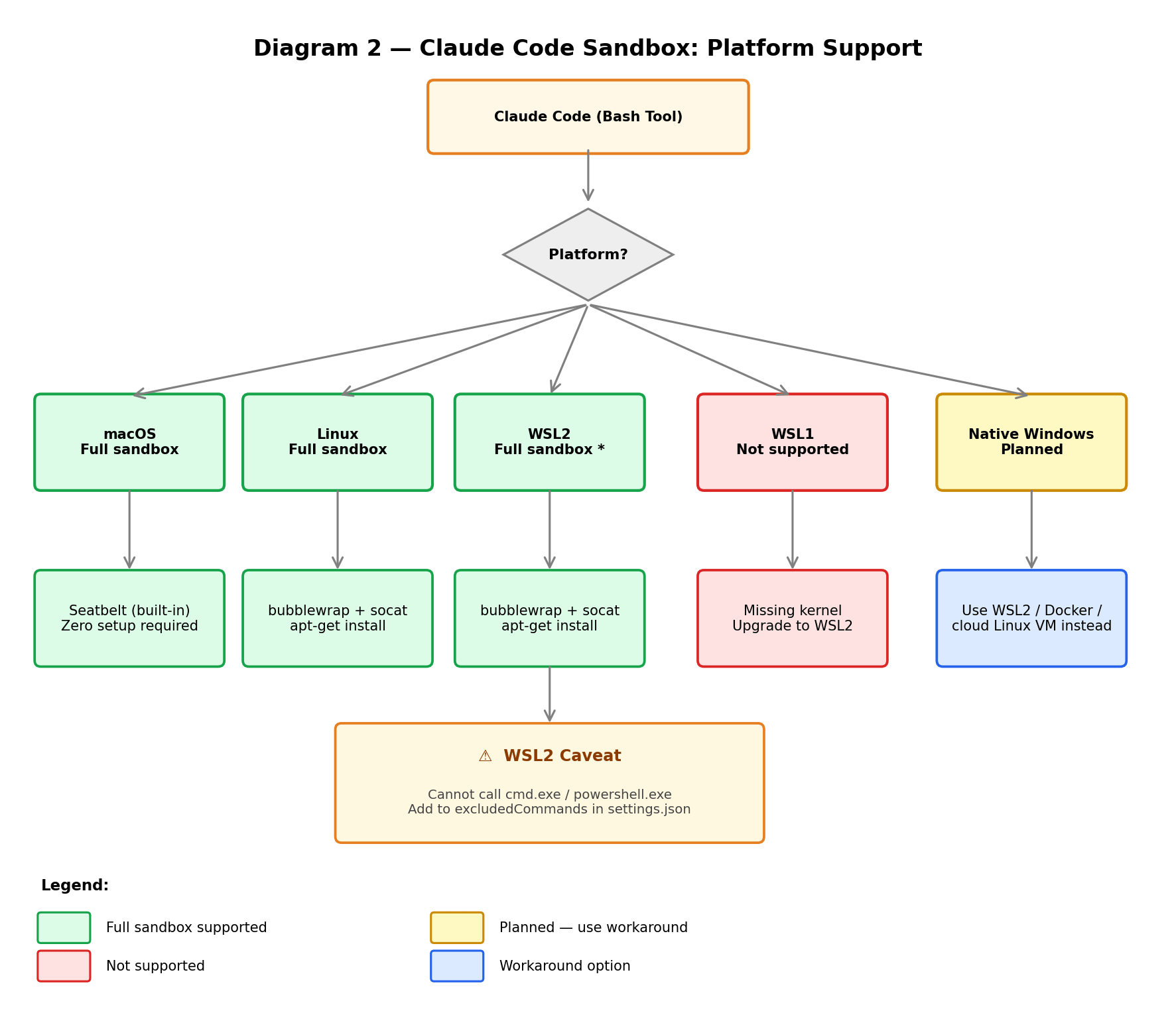 Diagram 2 — Platform support tree: macOS and Linux/WSL2 get full sandbox support; WSL1 and native Windows do not (native Windows support is planned).
Windows Teams: What to Do Today
Native Windows sandbox support is planned with no ETA. Claude Code itself installs and runs fine on Windows — only the sandbox feature is unavailable. For enterprise Windows teams, here are your options:
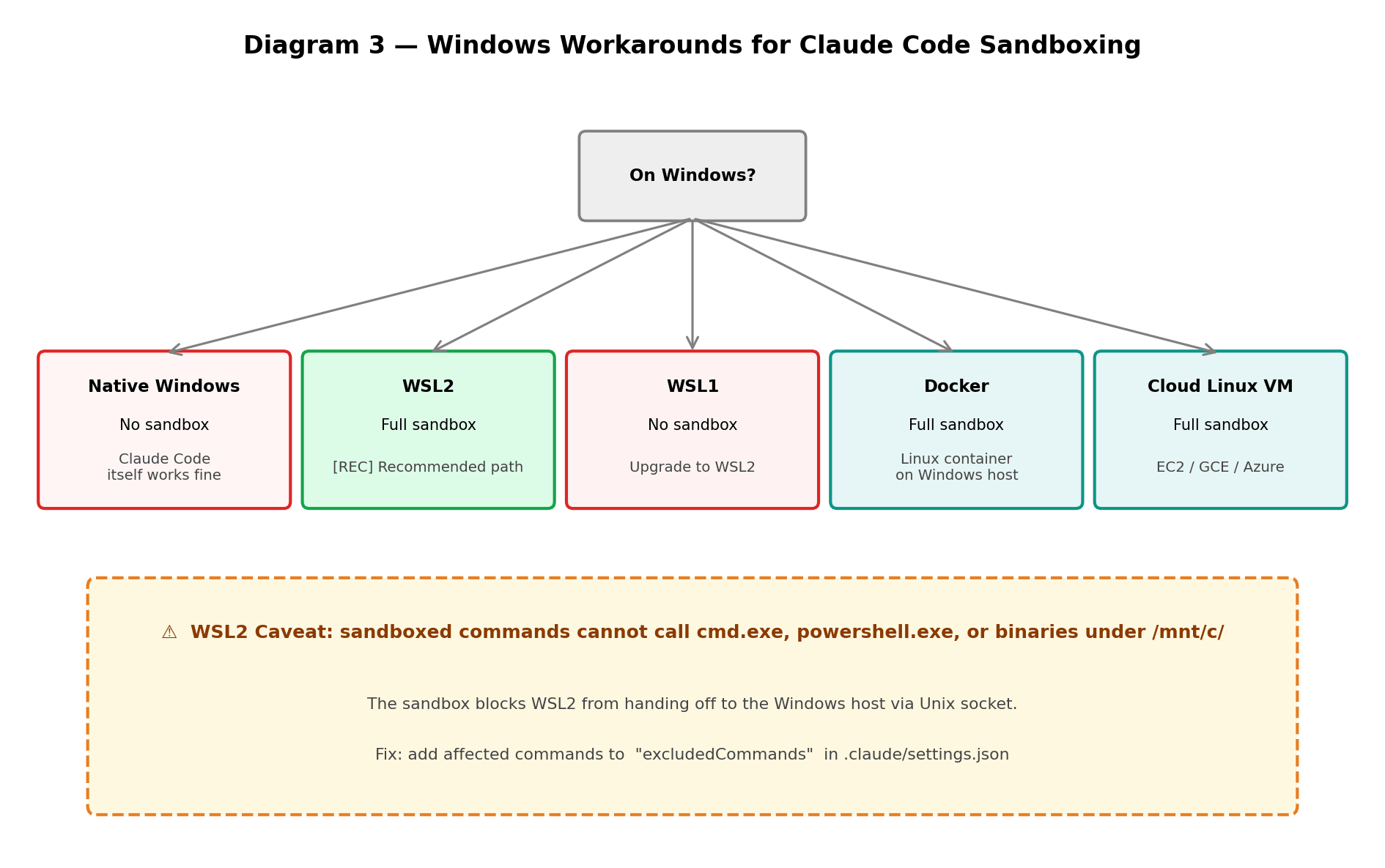 Diagram 3 — Windows workaround options: WSL2 is the recommended path for full sandbox support today.
WSL2 is the recommended path. However, there’s one caveat: sandboxed commands on WSL2 cannot invoke Windows binaries like cmd.exe, powershell.exe, or anything under /mnt/c/. WSL routes these via a Unix socket to the Windows host, which the sandbox blocks. The fix is straightforward — add them to excludedCommands:
{
  "sandbox": {
    "excludedCommands": ["cmd.exe", "powershell.exe"]
  }
}
Step 1: Enabling the Sandbox
On macOS (Zero Setup)
Seatbelt is built into macOS. Just run inside Claude Code:
/sandbox
This opens an interactive menu to choose your sandbox mode. If you’re on Linux or WSL2, it will prompt you to install the required packages first.
On Linux / WSL2
# Ubuntu / Debian
sudo apt-get install bubblewrap socat

# Fedora
sudo dnf install bubblewrap socat
Then run /sandbox inside Claude Code as above.
Sandbox Modes
Once enabled, you choose between two modes:
Auto-Allow Mode (recommended for autonomous work) — sandboxed Bash commands run automatically without prompts. Commands that can’t be sandboxed fall back to the regular permission flow. Destructive operations on critical paths still prompt regardless.
Regular Permissions Mode — all Bash commands go through the standard approval flow even when sandboxed. More control, more friction.
Step 2: Core Configuration
All settings live in .claude/settings.json (project level) or ~/.claude/settings.json (user level). For corporate environments, settings go into managed-settings.json — covered in the next section.
Basic sandbox enable
{
  "sandbox": {
    "enabled": true
  }
}
Grant write access to specific paths outside cwd
{
  "sandbox": {
    "enabled": true,
    "filesystem": {
      "allowWrite": ["~/.kube", "/tmp/build"]
    }
  }
}
Lock down reads to project directory only
{
  "sandbox": {
    "enabled": true,
    "filesystem": {
      "denyRead": ["~/"],
      "allowRead": ["."]
    }
  }
}
Allowlist specific domains only
{
  "sandbox": {
    "network": {
      "allowManagedDomainsOnly": true,
      "allowedDomains": ["api.github.com", "registry.npmjs.org"],
      "deniedDomains": ["example-bad-domain.com"]
    }
  }
}
Path prefix reference
| Prefix | Resolves to | Example |
|---|---|---|
/ | Absolute filesystem path | /tmp/build |
~/ | Home directory | ~/.kube → $HOME/.kube |
./ or none | Project root (project settings) or ~/.claude (user settings) | ./output |
Full sandbox vs. selective — do you need to sandbox everything?
No. You can exclude specific commands from the sandbox using excludedCommands. Use this for tools that are structurally incompatible with sandboxing, like Docker (which needs access to the Docker socket):
{
  "sandbox": {
    "enabled": true,
    "excludedCommands": ["docker *", "kubectl"]
  }
}
Excluded commands fall back to the normal permission flow — they’re not unprotected, just handled differently.
Step 3: Corporate Hardening with Managed Settings
This is where things get important for enterprise teams. Settings in settings.json can be overridden by users. Managed settings cannot be overridden by anything — not by users, not by project configs, not by command-line arguments.
The settings precedence hierarchy
| Priority | Scope | Who Controls It | Overridable? |
|---|---|---|---|
| 1 (highest) | Managed | Central IT / Security | ❌ Never |
| 2 | Command-line args | User (session only) | By managed only |
| 3 | Local | Individual developer (this repo only) | By managed + CLI |
| 4 | Project | Team (committed to git) | By managed + CLI + local |
| 5 (lowest) | User | Individual developer (all projects) | By all above |
Note: Local (3) overrides Project (4) because local settings are personal overrides for a specific repo — they are more specific than shared project settings. Source: official settings docs.
Three ways to deliver managed settings
Option 1 — Server-managed (Enterprise plan, highest tamper resistance) Pushed from Anthropic’s admin console. No local file exists on the device — nothing to tamper with.
Option 2 — MDM/OS-level policies (recommended for most enterprises)
| Platform | Mechanism | Tooling |
|---|---|---|
| macOS | com.anthropic.claudecode managed plist | Jamf, Kandji, or any MDM |
| Windows | HKLM\SOFTWARE\Policies\ClaudeCode registry key | Group Policy or Intune |
MDM re-pushes policy on every device check-in. Even if a user deletes the local file, it gets restored. Starter templates for Jamf, Kandji, Intune, and Group Policy are available at anthropics/claude-code/examples/mdm.
Option 3 — File-based managed-settings.json
| OS | Path |
|---|---|
| macOS | /Library/Application Support/ClaudeCode/managed-settings.json |
| Linux / WSL | /etc/claude-code/managed-settings.json |
| Windows | C:\Program Files\ClaudeCode\managed-settings.json |
Always protect this file with OS permissions after deployment:
sudo chown root:root /etc/claude-code/managed-settings.json
sudo chmod 644 /etc/claude-code/managed-settings.json
Large orgs: use drop-in policy fragments
For enterprises where Security, DevOps, and Compliance manage separate policies independently, use the managed-settings.d/ drop-in directory alongside the base file:
/etc/claude-code/
  managed-settings.json          ← base policy
  managed-settings.d/
    10-security.json             ← security team rules
    20-devops.json               ← DevOps team rules
    30-compliance.json           ← compliance team rules
Files are merged alphabetically. Scalar values: later files win. Arrays: concatenated and de-duplicated. Objects: deep-merged.
Recommended hardened baseline
Start locked down, then open only what your teams actually need:
{
  "permissions": {
    "disableBypassPermissionsMode": "disable",
    "deny": [
      "Read(**/.env)",
      "Read(**/secrets/**)",
      "Read(**/*.pem)",
      "Read(**/*.key)",
      "Bash(sudo:*)",
      "Bash(su:*)",
      "Bash(curl:*)",
      "Bash(wget:*)",
      "Bash(ssh:*)",
      "Bash(scp:*)"
    ]
  },
  "sandbox": {
    "enabled": true,
    "failIfUnavailable": true,
    "allowUnsandboxedCommands": false,
    "network": {
      "allowManagedDomainsOnly": true,
      "allowedDomains": [
        "api.anthropic.com",
        "api.github.com",
        "registry.npmjs.org",
        "pypi.org"
      ]
    }
  },
  "env": {
    "CLAUDE_CODE_DISABLE_NONESSENTIAL_TRAFFIC": "1"
  },
  "cleanupPeriodDays": 7
}
| Setting | Why it matters |
|---|---|
disableBypassPermissionsMode: "disable" | Prevents users entering bypass mode, which removes ALL safety checks |
failIfUnavailable: true | Sandbox becomes a hard requirement — Claude Code won’t start without it |
allowUnsandboxedCommands: false | Removes Claude’s built-in escape hatch for retrying blocked commands |
allowManagedDomainsOnly: true | Auto-blocks unapproved domains — no prompt shown to user |
CLAUDE_CODE_DISABLE_NONESSENTIAL_TRAFFIC | Reduces data leaving the device |
cleanupPeriodDays: 7 | Limits sensitive session transcript data sitting on-device |
Step 4: Integrating Zscaler
If your organisation runs Zscaler SSL inspection, it will intercept all HTTPS traffic from Claude Code — that’s expected behaviour and actually complements the sandbox’s built-in proxy rather than conflicting with it.
Here’s how the traffic flows:
Developer machine
  └── Claude Code (Bash tool)
        └── Sandbox network proxy (hostname allow/deny)
              └── Zscaler client connector
                    └── Zscaler cloud (TLS termination + DLP inspection)
                          └── Anthropic API / AWS Bedrock
Both layers enforce independently. If the sandbox allows a domain but Zscaler blocks it, the connection fails. If Zscaler allows it but it’s not in your sandbox allowlist, it also fails. This is defence in depth working as intended.
Configuration checklist
1. Trust Zscaler’s root CA at the OS level
Claude Code uses the OS certificate store. Deploy the Zscaler root CA via MDM (Jamf/Intune) to all developer machines:
# Verify on macOS
security find-certificate -a -c "Zscaler" /Library/Keychains/System.keychain

# Add on Linux
sudo cp zscaler-root-ca.crt /usr/local/share/ca-certificates/
sudo update-ca-certificates
2. Allowlist Claude Code domains in Zscaler
| Domain | Purpose |
|---|---|
api.anthropic.com | Anthropic API (direct) |
bedrock-runtime.*.amazonaws.com | AWS Bedrock |
sentry.io | Error telemetry (disable via env var if unwanted) |
registry.npmjs.org | npm |
pypi.org | Python packages |
api.github.com | GitHub API |
code.claude.com | Docs + update checks |
3. Route Claude Code through Zscaler in managed settings
{
  "sandbox": {
    "network": {
      "httpProxyPort": 8080,
      "socksProxyPort": 8081
    }
  },
  "env": {
    "HTTPS_PROXY": "https://your-zscaler-proxy.corp.com:8080",
    "HTTP_PROXY": "http://your-zscaler-proxy.corp.com:8080",
    "NO_PROXY": "localhost,127.0.0.1,.corp.internal"
  }
}
Common Zscaler issues
| Symptom | Likely cause | Fix |
|---|---|---|
| SSL errors on startup | Zscaler CA not trusted by OS | Deploy CA cert via MDM |
api.anthropic.com blocked | Not in Zscaler allowlist | Add to URL allowlist |
| npm/pip installs fail inside sandbox | Registry domains blocked | Add registry.npmjs.org, pypi.org |
| Bedrock calls fail | AWS domains blocked | Add *.amazonaws.com or specific Bedrock endpoints |
Step 5: Local Device vs. Central Deployment
A common question when rolling this out: does the sandbox run on each developer’s machine, or can we provide it centrally?
The sandbox always runs on whatever machine Claude Code is installed on. It’s an OS-level primitive — there’s no central sandbox server. Whether that machine is a developer’s laptop or a shared EC2 instance accessed via SSH, the isolation happens there.
Local device deployment
Developer laptop
  ├── Claude Code CLI
  ├── Sandbox (Seatbelt / bubblewrap)
  │     ├── Filesystem isolation (OS kernel)
  │     └── Network isolation (local proxy)
  └── managed-settings.json (pushed via MDM — read-only)
Each device needs bubblewrap (Linux/WSL2) or macOS Seatbelt (zero setup). The sandbox only protects the local machine — it doesn’t protect shared resources the developer can reach, like a shared database.
Central deployment (EC2 / Azure VM)
Shared EC2 / Azure VM (Linux)
  ├── Claude Code CLI (one install, SSH access per developer)
  ├── Sandbox (bubblewrap — one instance per SSH session/user)
  │     ├── Filesystem isolation (per-user working dir)
  │     └── Network isolation (per-session proxy)
  └── /etc/claude-code/managed-settings.json (root-owned)
Central deployment has real advantages for enterprise: root owns /etc/claude-code/ so developers can’t touch managed settings, bubblewrap is installed once at provisioning, and a VM with an IAM role attached means no per-developer AWS credentials for Bedrock.
Device / VM resource requirements
Claude Code itself is lightweight. The resources consumed are driven by the commands it runs — builds, tests, linters.
| Resource | Local laptop | Shared VM / EC2 |
|---|---|---|
| CPU | Moderate | At least 2 vCPU per concurrent developer session |
| RAM | 2–4 GB free | 4–8 GB per developer; 16–32 GB for a team of 4–8 |
| Disk | Project + build artefacts | SSD recommended; factor in all users’ working directories |
| OS | macOS or Linux/WSL2 | Any Linux distro with bubblewrap |
Can users override managed settings on their own device?
| Delivery method | Tamper resistance | Reason |
|---|---|---|
| Server-managed (Enterprise) | ⭐⭐⭐ Highest | No local file — nothing to overwrite |
| MDM (Intune/Jamf) | ⭐⭐⭐ Highest | Re-pushed on every device check-in |
| File-based + root/NTFS ACLs | ⭐⭐ Medium | Protected from standard users |
| File-based, no ACL | ⭐ Low | Local admin can overwrite |
Shared Linux VM (root-owned /etc/) | ⭐⭐⭐ Highest | SSH users have no root access |
Recommended enterprise architecture
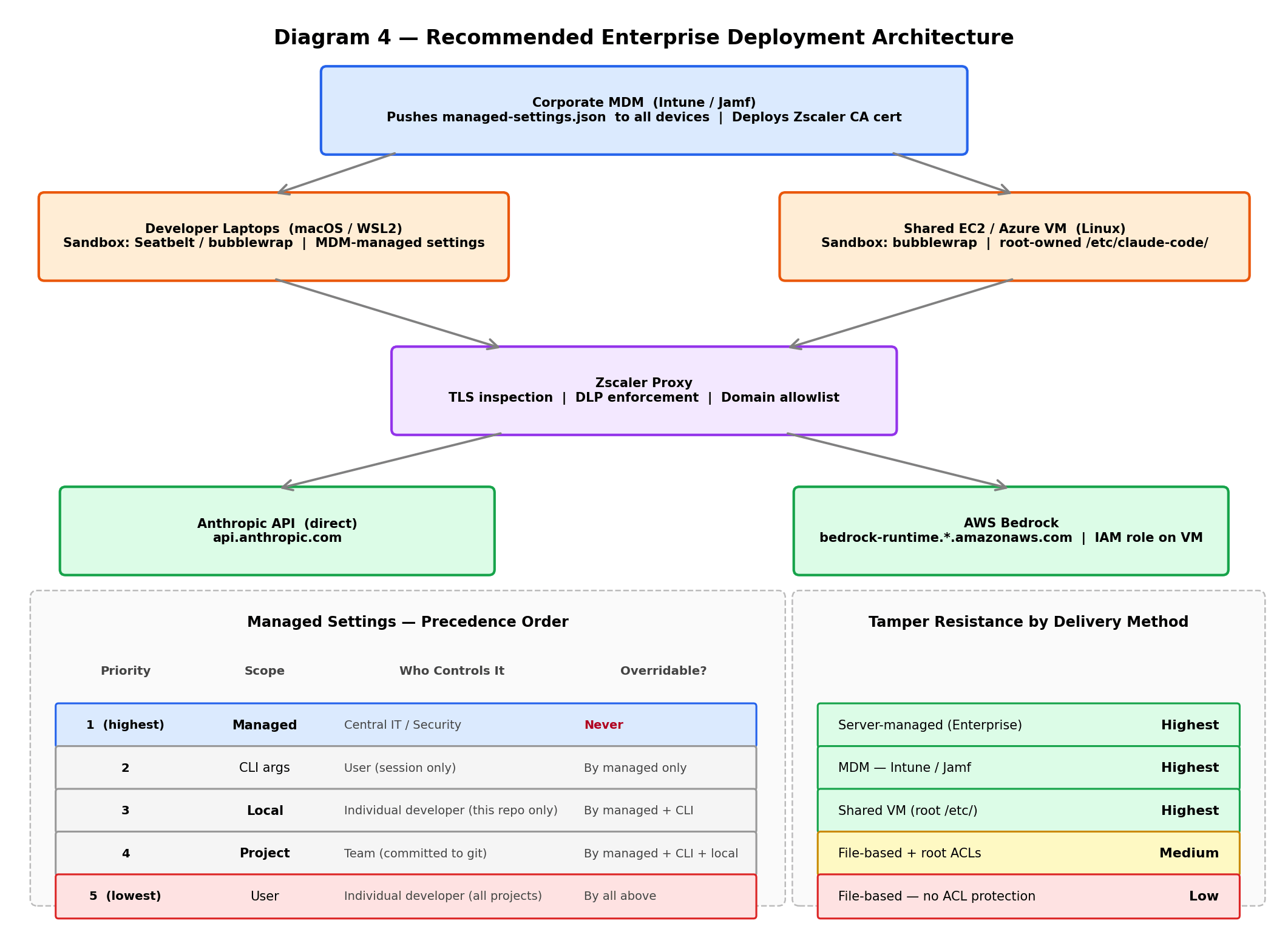 Diagram 4 — Recommended enterprise architecture: MDM pushes policy to developer laptops and shared VMs; all traffic routes through Zscaler before reaching Anthropic API or AWS Bedrock.
Running Claude Code via AWS Bedrock
For AWS-native teams, Claude Code connects to Bedrock via environment variables:
export CLAUDE_CODE_USE_BEDROCK=1
export AWS_REGION=us-east-1
With Zscaler or a corporate proxy:
export CLAUDE_CODE_USE_BEDROCK=1
export AWS_REGION=us-east-1
export HTTPS_PROXY='https://your-zscaler-proxy.corp.com:8080'
With an LLM gateway (for centralised auth and rate limiting):
export CLAUDE_CODE_USE_BEDROCK=1
export ANTHROPIC_BEDROCK_BASE_URL='https://your-llm-gateway.com/bedrock'
export CLAUDE_CODE_SKIP_BEDROCK_AUTH=1
One important Bedrock limitation to know: Auto mode is not available on Bedrock. It requires Anthropic-managed infrastructure. Use sandbox + permission modes + IAM policies as your primary security controls instead.
| Feature | Bedrock Support |
|---|---|
| Sandbox | ✅ Fully supported |
| Permission modes | ✅ All modes supported |
| Auto mode | ❌ Not available |
| Auth | AWS credentials / IAM role |
| Cost tracking | AWS Cost Explorer / CloudTrail |
Verification
Once you’ve deployed managed settings, verify they’re active and that the sandbox is running. Inside a Claude Code session:
/sandbox
The status shown should confirm the sandbox mode is active. To confirm managed settings are being applied and that users cannot override them, test by attempting to set a conflicting value in ~/.claude/settings.json — the managed value should always win.
For Linux/WSL2 deployments, verify bubblewrap is installed:
bwrap --version
socat -V
For Zscaler integration, verify the CA trust:
# macOS
security find-certificate -a -c "Zscaler" /Library/Keychains/System.keychain

# Linux
openssl s_client -connect api.anthropic.com:443 2>/dev/null | openssl x509 -noout -issuer
Troubleshooting
Sandbox won’t start on Linux/WSL2
Check bubblewrap is installed: bwrap --version. If missing: sudo apt-get install bubblewrap socat. Also confirm you’re on WSL2 not WSL1: wsl --list --verbose.
SSL certificate errors Zscaler CA not trusted at OS level. Deploy the Zscaler root CA via MDM before rolling out Claude Code.
npm / pip installs fail inside sandbox
The package registry domain isn’t in your sandbox allowlist. Add registry.npmjs.org and pypi.org to both your sandbox allowedDomains and your Zscaler URL allowlist.
Docker commands failing
Docker needs access to the Docker socket, which the sandbox blocks. Add docker * to excludedCommands.
Users getting around managed settings If using file-based delivery, verify the file has correct ACLs. If using MDM, check that the device is enrolled and the policy is being applied. Switch to server-managed (Enterprise plan) for the strongest tamper resistance.
cmd.exe / PowerShell fails inside WSL2 sandbox
Expected behaviour — the sandbox blocks WSL2 from handing off to the Windows host. Add to excludedCommands.
Conclusion
Claude Code’s sandbox is genuinely powerful, but it requires intentional configuration to be enterprise-ready. The key things to get right:
- Enable both filesystem and network isolation — neither alone is sufficient
- Use managed settings (MDM or server-managed) so developers can’t override corporate policy
- Integrate Zscaler by trusting its CA at the OS level and routing sandbox traffic through it
- Plan your deployment model — local laptops via MDM or a shared Linux VM for tighter control
- On Windows, standardise on WSL2 until native Windows sandbox support lands
- If on AWS Bedrock, sandbox replaces Auto mode as your primary runtime safety control
Claude Code is moving fast — check the official changelog for native Windows sandbox support and other updates.
Safety first mindset with AI!
Resources
- Claude Code Sandboxing
- Permission Modes
- Settings Reference
- MDM Deployment Templates (Jamf / Intune / GPO)
- Amazon Bedrock Setup
- Auto Mode Deep Dive
- Open-Source Sandbox Runtime
Note
Disclaimer: This article was fine-tuned with the assistance of AI. All technical details have been verified against official Claude Code documentation. The structure, insights, and enterprise guidance reflect the author’s own experience and interpretation.

Shibin John
Principal Product Owner at Allianz Technology. Passionate in security and Gen AI topics.
Note
Disclaimer: The views expressed and the content shared in all published articles on this website are solely those of the respective authors, and they do not necessarily reflect the views of the author’s employer or the platform. We strive to ensure the accuracy and validity of the content published on our website. However, we cannot guarantee the absolute correctness or completeness of the information provided. It is the responsibility of the readers and users of this website to verify the accuracy and appropriateness of any information or opinions expressed within the articles. If you come across any content that you believe to be incorrect or invalid, please contact us immediately so that we can address the issue promptly.
 Jamsheer Ali
 The Desk
 Gineesh Madapparambath